FittyUp guides
Set up 19 native iOS & iPadOS widgets and Lock Screen Live Activities
When your remaining calories, protein ring, water goal, and fasting timer live right on your Home Screen and Lock Screen, staying consistent takes a 2-second glance instead of hunting for an app icon.
2-Second Glanceable Health Stack
12 Core Widgets Free · All 19 Unlocked on FittyUp Pro
Supports iOS Smart Stacks & StandBy Mode
Updates via lightweight App Group snapshots
Live Activities on Lock Screen & Dynamic Island
DAILY GLANCE EFFICIENCY
Check 6 Trackers in < 2 Seconds
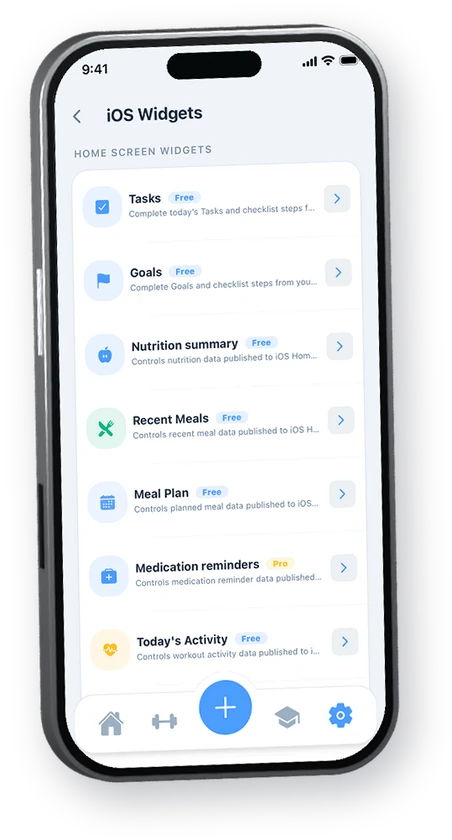
☀️ Default
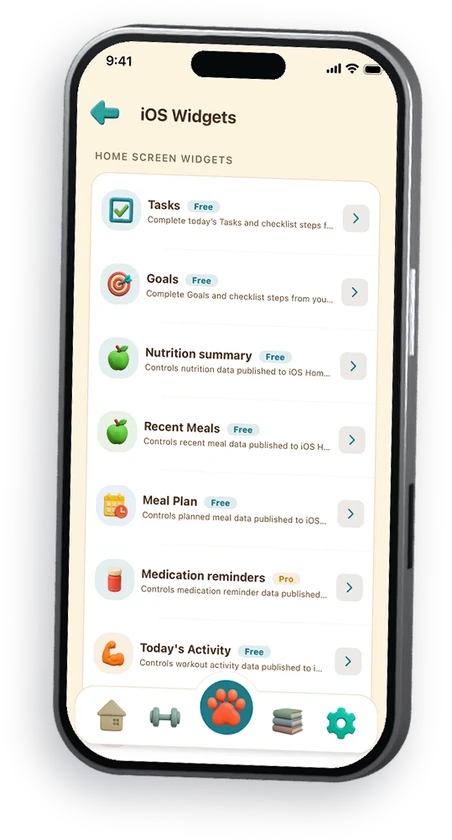
🧸 Clay
Explore all 19 native widgets (12 core free, all 19 on Pro)
FittyUp includes small, medium, and Lock Screen widgets covering calories and macros, protein targets, intermittent fasting timers, water intake, daily tasks and checklists, workout streaks, sleep summary, and steps.
Add widgets to your iPhone Home Screen, Lock Screen, or Smart Stack
Long-press an empty area on your Home Screen or Lock Screen, tap the + button, search for FittyUp, and choose your preferred widget size. Stack nutrition, water, and workout widgets into an iOS Smart Stack that rotates through your day.
Use Lock Screen Live Activities and Dynamic Island for active timers
When an intermittent fast or workout session is running, Live Activities keep your live timer visible on the Lock Screen and Dynamic Island.
Enjoy the native two-column layout on iPadOS
On iPad, FittyUp adapts with a native two-column workspace and side navigation rail, synced automatically with your iPhone through your cloud account.
Frequently asked questions
How many Home Screen and Lock Screen widgets are included for free?
The Free plan includes 12 core widgets, while FittyUp Pro unlocks all 19 native iOS and iPadOS widgets.
How do I add a FittyUp widget on iPhone or iPad?
Touch and hold your Home Screen or Lock Screen, tap Edit or +, select FittyUp, and choose the widget size you want.
How do FittyUp widgets stay updated without draining battery?
Widgets read lightweight App Group snapshots updated when you log or sync in the app, observing iOS WidgetKit timeline budgets.
Does FittyUp run natively on iPad screen sizes?
Yes. FittyUp features a dedicated two-column iPadOS layout with adaptive navigation and cloud account sync.
Nutrition values are estimates. Check ingredients yourself if you have allergies. FittyUp supports general wellness and does not replace medical advice.
AI features use credits. Availability depends on your app version and plan.